



Uploading pictures
Thread Starter
|
Senior User
Joined: Mar 2010
Posts: 183
Likes: 0
Uploading pictures
Does anyone know how to upload pictures to your home screen? I put a Memorex CD-R recordable 48X 700MB 80MIN disc in my computer burned a picture onto it. then put it in my truck and it says bad disc or bad format. Any ideas?

Junior User
Joined: Jul 2010
Posts: 88
Likes: 0
From: Clear Lake, MN
I seen this the other day on the Sync Owner to Owner site. I have not tried this yet. I posted a link at the bottom to this forum. Hope this helps and keep us posted on how it goes.
Loading pictures
Your navigation system allows you to save and view up to 32 photos. To access:
1. Ensure that you are on the Home Screen. (Press at the bottom left of any screen to access.)
2. Touch the left side of the home screen to initiate the left screen photo display and saved photos screen.
3. Select the ‘Add’ button on the touchscreen. The following disclaimer will appear, “Please confirm the supported photo formats”.
4. When the pop-up dialog box with the disclaimer appears, press OK and ensure that you are using the proper format.
5. Insert a CD-ROM which contains your photos as jpegs.
6. Press OK. The photos will be listed on the right half of the screen.
7. Select either ADD or ADD ALL.
The photos are now saved to the hard drive.
Photo display limitations:
• The file must be 1.5MB or less.
• The extension of the file must be one of JPE/JPG/JPEG.
• The CD or DVD must be ISO 9660 format, UDF format is not supported.
• The file path must be 255 characters or less.
• Up to 256 files or folders can be displayed in one folder.
• Not compatible with discs written in Packet Write mode.
• Only the photograph(s) which meet these conditions will be displayed.
Note: When burning a CD, ensure that you ‘close’ or ‘finalize’ the disc when the CD-burning process finishes (you should select this option before you start burning). Consult your software manual or the program’s Help files if you’re not sure how to finalize the disc. Also, write the audio data into the first session of a multi-session CD as audio systems won’t be able to sort through other sessions to find more audio tracks.
Owner to Owner
Loading pictures
Your navigation system allows you to save and view up to 32 photos. To access:
1. Ensure that you are on the Home Screen. (Press at the bottom left of any screen to access.)
2. Touch the left side of the home screen to initiate the left screen photo display and saved photos screen.
3. Select the ‘Add’ button on the touchscreen. The following disclaimer will appear, “Please confirm the supported photo formats”.
4. When the pop-up dialog box with the disclaimer appears, press OK and ensure that you are using the proper format.
5. Insert a CD-ROM which contains your photos as jpegs.
6. Press OK. The photos will be listed on the right half of the screen.
7. Select either ADD or ADD ALL.
The photos are now saved to the hard drive.
Photo display limitations:
• The file must be 1.5MB or less.
• The extension of the file must be one of JPE/JPG/JPEG.
• The CD or DVD must be ISO 9660 format, UDF format is not supported.
• The file path must be 255 characters or less.
• Up to 256 files or folders can be displayed in one folder.
• Not compatible with discs written in Packet Write mode.
• Only the photograph(s) which meet these conditions will be displayed.
Note: When burning a CD, ensure that you ‘close’ or ‘finalize’ the disc when the CD-burning process finishes (you should select this option before you start burning). Consult your software manual or the program’s Help files if you’re not sure how to finalize the disc. Also, write the audio data into the first session of a multi-session CD as audio systems won’t be able to sort through other sessions to find more audio tracks.
Owner to Owner
Post Fiend
Joined: Apr 2004
Posts: 5,158
Likes: 35
From: North of Salt Lake City
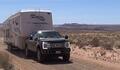
Thanks GrandSlam. I finally loaded my favorite John Wayne photo onto the NAV screen on the truck. Wish there was a way to make it a little bigger. Anyone know how to make a single photo take up the ENTIRE display?


Elder User
Joined: Feb 2010
Posts: 700
Likes: 0
From: Northern Il/Cabin in Wi

That's right little buddy........
Trending Topics
Post Fiend
Joined: Apr 2004
Posts: 5,158
Likes: 35
From: North of Salt Lake City
FTE Stories
Ford Trucks for Ford Truck Enthusiasts

Top 6 Best Deals Available on New Fords & Lincolns Right Now
Brett Foote
This Hennessey Takes the Expedition Tremor's Off-Roading Capability to the Next Level
Verdad Gallardo
Top 10 Fords at 2026 Carlisle Ford Nationals
Joe Kucinski
3 Best / 3 Worst Parts of Modern Ford Ownership
Brett Foote
10 Amazing Upgrades That Solve Common Ford Truck Owner Headaches
Pouria Savadkouei
Every 2026 Ford Engine Explained
Brett Foote
10 Ugly Ford Trucks That We Still Kinda Love
Joe Kucinski
10 Things Every Truck Owner NEEDS (2026 Edition)
Michael S. Palmer
Rezvani's Latest Post-Apocalyptic Monster Is a Ford F-150 Raptor Underneath
Verdad Gallardo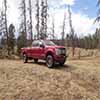
Lead Driver


Joined: Nov 2005
Posts: 5,245
Likes: 4,266
From: Kaysville Utah
Haven't figured out how to make them larger, So I just keep adding new one from places I've ridden the horses in the last month. I guess you could say being seasonal in my photos. Snowy photos in the winter and green photos in the summer. Here is one from last week



Hotshot
Joined: Nov 2013
Posts: 10,107
Likes: 96
From: Hempstead, TX
What truck do you have - year and trim? This thread was from a bunch of guys with what is now the older system and things have changed a bit since.
If changing the wallpaper on your touch screen is what you want, and you have the newer 2013+ system, check out this thread and start with post #12:
https://www.ford-trucks.com/forums/1...e-reading.html
If changing the wallpaper on your touch screen is what you want, and you have the newer 2013+ system, check out this thread and start with post #12:
https://www.ford-trucks.com/forums/1...e-reading.html

Thread
Thread Starter
Forum
Replies
Last Post
northerndave
1973 - 1979 F-100 & Larger F-Series Trucks
42
Oct 15, 2021 01:16 AM
TxF100
1948 - 1956 F1, F100 & Larger F-Series Trucks
46
Nov 3, 2016 02:04 PM
Vickadelphia
1973 - 1979 F-100 & Larger F-Series Trucks
8
May 2, 2016 11:47 PM
